
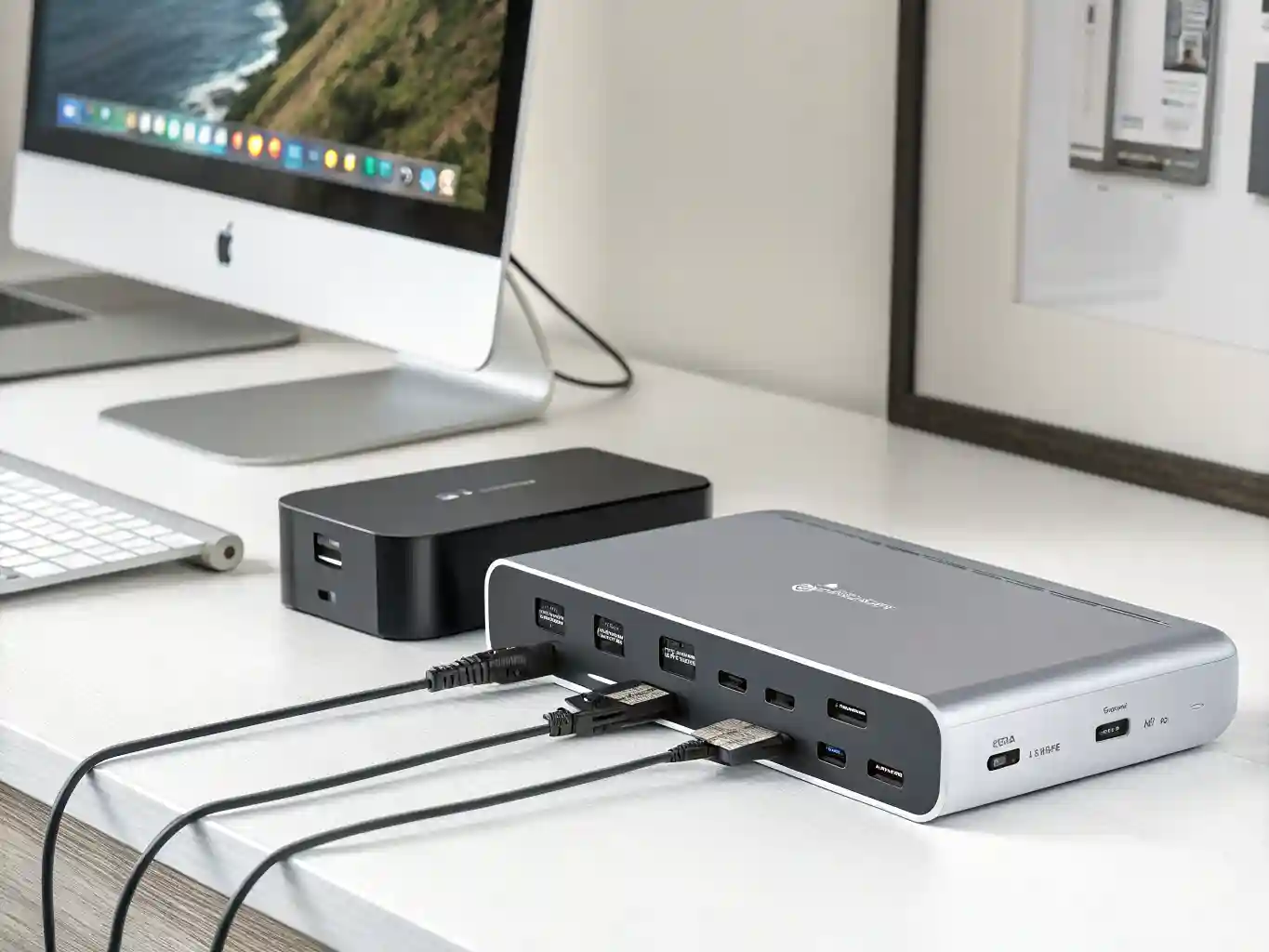
A modern PC desk is no longer just a monitor, keyboard, mouse, and charger. Many users now connect two high-resolution displays, fast external SSDs, Ethernet, audio gear, webcams, capture cards, card readers, and sometimes even external PCIe devices through one cable. That is why the choice between a Thunderbolt 5 dock and a USB4 dock matters more in 2026 than it did a few years ago.
The difficult part is that both standards use the same familiar USB-C connector, and many product pages make them sound almost identical. In real use, they are not the same. Thunderbolt 5 is built for high-end bandwidth, strict certification, demanding displays, and fast storage. USB4 is broader, often cheaper, and more flexible, but its actual capabilities depend heavily on the specific laptop, motherboard, dock, cable, and manufacturer implementation.
For a PC user, the right choice is not always the most expensive dock. A gaming laptop with Thunderbolt 5, a creator workstation, or a compact PC running several displays can benefit from a premium Thunderbolt 5 setup. A home office PC, a mainstream laptop, or a desk with one monitor and standard peripherals may be better served by a good USB4 dock. The best decision starts with the hardware you already have and the desk you are trying to build.
What separates Thunderbolt 5 from USB4
Thunderbolt 5 and USB4 share a family resemblance because both are built around the USB-C connector and modern multi-protocol tunneling. They can carry data, display signals, and power through one cable. They can also support older devices, although not always at full speed. That overlap is useful, but it also creates confusion because the connector shape tells you almost nothing about the real performance behind the port.
Thunderbolt 5 is the more tightly controlled standard. It is associated with Intel’s certification program, and that matters in daily use. A certified Thunderbolt product is expected to meet specific performance and compatibility requirements. This does not make every Thunderbolt dock perfect, but it reduces the amount of guesswork. When a dock, cable, and computer all support Thunderbolt 5 properly, the user can expect a high ceiling for display bandwidth, fast storage, and chained devices.
USB4 is more open and more varied. It can be excellent, especially in its newer 80Gbps form, but not every USB4 port offers the same features. Some USB4 implementations support 40Gbps, some support 80Gbps, and the display behavior may differ by PC platform. One USB4 laptop may handle a dock beautifully, while another may be limited by firmware, graphics output, power delivery, or the way the manufacturer wired the port.
That is the central difference for buyers. Thunderbolt 5 is usually the safer premium choice when you need predictable high performance. USB4 is often the smarter value choice when your desk setup is less demanding or when your PC does not have a true Thunderbolt 5 port.
The names also hide another practical issue: a dock cannot create bandwidth that the computer does not provide. Connecting a Thunderbolt 5 dock to a USB4 40Gbps port will not magically unlock Thunderbolt 5 performance. The dock may work, but it will fall back to the lower capability of the host connection. The same applies to cables. A weak or older USB-C cable can turn an expensive dock into a frustrating desk accessory.
For simple use, both standards can feel similar. A keyboard, mouse, Ethernet adapter, headset, webcam, and one 4K monitor do not usually push the limits. The difference becomes visible when the desk grows: dual 4K high-refresh displays, 6K or 8K monitors, fast external NVMe drives, large media files, and several devices active at the same time.
Performance that actually matters on a PC desk
The headline speed is the easiest number to advertise and the easiest number to misunderstand. Thunderbolt 5 can provide 80Gbps of bidirectional bandwidth and can shift into a higher one-way display-focused mode of up to 120Gbps when needed. USB4 Version 2.0 also raises the ceiling to 80Gbps and can support an asymmetric mode for certain display-heavy situations. On paper, the numbers look close. In a real PC setup, the difference is often about consistency, certification, and the way the dock handles multiple jobs at once.
A dock is rarely doing one thing. It may be feeding two monitors, passing data to an external SSD, charging a laptop, running Ethernet, and connecting several USB devices at the same time. The stronger the dock and host platform, the less the user notices these competing demands. Weak docks may work fine until the moment a large file transfer starts while a second monitor is active or a webcam is sending video during a meeting.
Storage is one area where the difference can become obvious. A fast external NVMe SSD can use a lot of bandwidth. If you edit video directly from an external drive, move large project folders, back up game libraries, or work with virtual machines, the dock’s upstream connection matters. Thunderbolt 5 is especially attractive here because it offers a wider performance envelope and stronger support for demanding PCIe-based workflows.
Displays are even more important. Many PC users now expect one cable to drive two monitors. That may be two 4K displays at 60Hz, two 4K displays at higher refresh rates, a 5K or 6K panel, or an ultrawide monitor with a demanding refresh rate. Thunderbolt 5 is designed with these heavier visual workloads in mind. USB4 can also support strong display setups, but the final result depends on the PC’s graphics output, the dock’s design, DisplayPort support, and whether compression is used.
Power delivery should not be ignored. Some docks offer enough charging for thin laptops but not for gaming or workstation-class machines. USB-C Power Delivery can reach high wattages, but the dock, cable, charger, and laptop must all support the same level. A 100W dock may be fine for an ultrabook and disappointing for a powerful laptop that expects 140W, 180W, or more from its original charger.
The table below gives a practical comparison rather than a marketing-only view. Exact behavior still depends on the specific PC and dock, but these points help separate the two categories before buying.
| Feature | Thunderbolt 5 dock | USB4 dock |
|---|---|---|
| Best fit | High-end PCs, creator laptops, workstations, demanding multi-monitor desks | Mainstream PCs, office setups, mixed-device homes, value-focused desks |
| Connector | USB-C shape with Thunderbolt certification | USB-C shape with USB4 support |
| Typical bandwidth ceiling | 80Gbps bidirectional, with up to 120Gbps display-focused mode | Commonly 40Gbps, with newer USB4 v2 products reaching 80Gbps |
| Display strength | Better for dual high-resolution or high-refresh setups | Good, but more dependent on host and dock implementation |
| External SSD performance | Strong choice for fast NVMe drives and heavy transfers | Good for many users, but performance varies more |
| Compatibility confidence | Usually higher due to stricter certification | Broader, but specifications can be inconsistent across products |
| Price level | Usually premium | Usually more affordable |
| Best buyer | Someone who wants headroom and fewer compromises | Someone who wants practical connectivity without overspending |
The important lesson is that Thunderbolt 5 is not automatically required for every serious PC desk. It is the stronger platform when the workload is heavy enough to use it. USB4 is the better buy when the user needs a clean single-cable desk but does not need extreme display bandwidth, top-tier external storage speed, or the most predictable high-end behavior.
When a Thunderbolt 5 dock makes sense
A Thunderbolt 5 dock makes the most sense when the PC itself is already built for premium connectivity. That usually means a recent high-end laptop, a compact workstation, a powerful creator machine, or a desktop motherboard with true Thunderbolt 5 support. Buying the dock before checking the host port is a common mistake. The dock may still function on a slower port, but the reason for paying extra disappears.
The strongest reason to choose Thunderbolt 5 is a display-heavy desk. A user with two high-resolution monitors, a 6K panel, an 8K display, or a high-refresh 4K setup needs more than just a basic USB-C hub. Displays consume bandwidth continuously. When the connection is also handling storage and peripherals, the dock needs enough room to keep everything stable.
Creative work is another natural fit. Video editors, 3D artists, photographers, music producers, developers, and engineers often rely on external drives, capture devices, audio interfaces, card readers, and large monitors. A cheap dock can become the weak link in that chain. Thunderbolt 5 does not make the CPU or GPU faster, but it can remove connection bottlenecks around the machine.
It also makes sense for users who want a longer-lasting desk setup. A good dock can outlive one laptop. Someone buying a new premium PC in 2026 may want a dock that still feels current in 2028 or 2029. Thunderbolt 5 gives more headroom than a basic USB4 40Gbps dock, especially as monitors and storage devices continue to demand more bandwidth.
A Thunderbolt 5 dock is most convincing when the desk includes several of these needs at the same time:
• Two or more high-resolution monitors connected through the dock.
• Fast external NVMe storage used for active work, not only backup.
• A PC with a real Thunderbolt 5 port and a certified high-speed cable.
• A need for stable performance during video calls, file transfers, and display output at the same time.
• A plan to keep the dock through at least one future PC upgrade.
The downside is cost. Thunderbolt 5 docks are usually more expensive, and the best models are not bought just for the logo. Port layout matters. A dock with the wrong mix of HDMI, DisplayPort, downstream USB-C, USB-A, Ethernet, audio, SD card slots, and charging wattage can still be a poor match. A premium standard does not fix a bad port selection.
There is also a practical heat and power factor. High-performance docks work harder. Some are warm during normal use, especially with multiple displays and fast storage attached. That is not automatically a problem, but it is a reason to buy from reliable brands with good reviews, proper certification, and sensible thermal design.
For PC gamers, the answer is more specific. Thunderbolt 5 is useful if the dock is part of a high-refresh monitor setup or if the laptop also serves as a work machine. It is less useful if the gaming laptop stays plugged into its own power brick and connects directly to the main gaming monitor through HDMI or DisplayPort. Competitive players may still prefer a direct display connection for simplicity and predictable behavior.
When USB4 is the smarter choice
USB4 is often the more reasonable option for a normal PC desk. Many users want one cable for a monitor, keyboard, mouse, Ethernet, webcam, speakers, and charging. That setup does not always need Thunderbolt 5. A well-made USB4 dock can clean up the desk, reduce cable clutter, and provide strong everyday performance at a lower price.
The biggest advantage of USB4 is value. Because it is used across a wide range of devices and accessories, there are more affordable docks and hubs. Some are compact travel docks with a few essential ports. Others are full desktop docks with Ethernet, display outputs, card readers, and several USB ports. A user can buy closer to the actual need instead of paying for bandwidth that will sit unused.
USB4 is especially attractive for office work. Documents, browsers, calls, cloud apps, messaging, and light media editing do not usually overwhelm a good USB4 dock. Even a single 4K monitor with Ethernet and peripherals is a comfortable workload for many USB4 products. For a home office or study desk, that may be the right balance.
It is also a strong choice for mixed-device households. A USB4 dock may work with more laptops, tablets, handheld PCs, and older USB-C devices, although not always with the same features. This flexibility is useful when one desk is shared by several machines. A Thunderbolt dock can also be backward compatible, but USB4 docks are often positioned around broader everyday compatibility and price.
The risk with USB4 is the label. It does not always tell the full story. A product can say USB4 while hiding details that matter: actual speed, display limits, charging wattage, Ethernet speed, downstream USB-C performance, or whether the included cable is good enough. Buyers should not rely only on the front of the box. The specification sheet matters.
For 2026, the most important USB4 distinction is between older 40Gbps USB4 products and newer USB4 80Gbps products. A 40Gbps dock may be perfectly fine, but it should be priced accordingly. A USB4 v2 or USB 80Gbps dock can move closer to Thunderbolt 5 territory, but the host PC must also support the higher speed. Otherwise, the dock will fall back to the lower mode.
USB4 can be the better buy when the setup is practical rather than extreme. One or two standard monitors, common USB accessories, wired networking, and moderate storage use are exactly the kinds of workloads where a good USB4 dock feels fast and convenient. Paying extra for Thunderbolt 5 only makes sense if the user has a clear reason to use the extra capability.
Compatibility, cables, and hidden buying traps
The worst dock purchase is not the one with slightly lower speed. It is the one that looks right on paper and behaves unpredictably on the actual PC. Docking problems often come from hidden compatibility details rather than the main standard itself.
The host port is the starting point. A USB-C port may support charging only, USB data only, DisplayPort Alt Mode, USB4, Thunderbolt 4, or Thunderbolt 5. The same physical connector can mean very different things. On a desktop PC, the motherboard manual is often more reliable than the port shape. On a laptop, the manufacturer’s spec page should state the exact port standard.
Cables are the next trap. A cable that charges a phone is not automatically suitable for a high-performance dock. Thunderbolt 5 and USB4 80Gbps setups require proper cables. Passive cable length, active cable support, power rating, and certification all matter. A weak cable can cause monitor flicker, disconnects, lower transfer speeds, or failed charging.
Display support needs special attention. A dock may advertise dual 4K, but the refresh rate, operating system, GPU, compression support, and port type can change the real result. Some docks use HDMI, some use DisplayPort, some rely on downstream USB-C, and some mix several options. PC users should check the exact monitor resolution and refresh rate they plan to run, not just the maximum number printed in a headline.
Power delivery can also be misleading. A dock may have a large external power supply but provide less power to the host PC after reserving power for its own ports. A laptop that needs more power may charge slowly, drain under load, or display a warning. This is common with powerful creator and gaming laptops. For those machines, the original power adapter may still be necessary even when using a dock.
Ethernet is another small detail that becomes important over time. Many affordable docks still use 1GbE, which is fine for general internet use. Users with network storage, fast fiber connections, or large local backups may prefer 2.5GbE or faster. The same applies to card readers. A photographer may care deeply about SD card speed, while an office user may never use the slot.
The safest buying approach is to match the dock to the actual desk. Count the monitors. Check their resolution and refresh rate. List the peripherals. Confirm charging needs. Look up the PC port standard. Check whether the included cable is certified for the advertised speed and power. Only then does it make sense to compare prices.
Which one should you choose in 2026
For most PC users in 2026, the decision is straightforward once the desk is defined. Choose Thunderbolt 5 if the computer supports it and the setup is genuinely demanding. Choose USB4 if the goal is a clean, reliable, affordable desk without extreme bandwidth needs.
Thunderbolt 5 is the better choice for a premium laptop or workstation that drives multiple high-resolution displays, moves large files through external SSDs, and needs stable performance while several devices are active. It is also the better choice for buyers who want more headroom for future monitors and storage. The higher price makes sense when the dock is central to daily work and the PC can use its capabilities.
USB4 is the better choice for mainstream productivity, hybrid work, study, light creative tasks, and shared desks. A good USB4 dock can still feel modern and fast. It can remove cable clutter, support a monitor, connect peripherals, provide Ethernet, and charge a laptop. For many users, that is the entire job. Spending more on Thunderbolt 5 would not noticeably improve writing documents, joining video calls, browsing, coding, or managing everyday files.
There is a middle ground. A user with a new PC that supports USB4 80Gbps may consider a higher-end USB4 dock if the price is attractive and the dock has the right ports. This can be a strong option when Thunderbolt 5 accessories are still expensive. The key is to verify that both the PC and dock support the higher-speed mode. Otherwise, the system may behave like a standard 40Gbps setup.
The conclusion is not that one standard wins everywhere. Thunderbolt 5 wins on performance ceiling, certification confidence, and demanding display or storage workflows. USB4 wins on price, availability, and practical usefulness for ordinary desks. The best dock is the one that fits the PC, the monitors, the charging requirement, and the way the desk is actually used.
A buyer building a serious creator or workstation setup should treat Thunderbolt 5 as the preferred route. A buyer building a clean home office should start with USB4 and only move up if the monitor, storage, or future upgrade plan justifies it. In 2026, the smartest purchase is not the dock with the biggest number on the box. It is the dock that gives the PC enough bandwidth, the right ports, reliable power, and no unnecessary compromises.