
A hot laptop is a slow laptop, and the throttling that protects the chip is the reason a machine that benchmarked well in a review crawls after an hour of real work. Cooling is not one fix but a stack of them, and they differ enormously in cost, effort and the temperature drop they actually deliver. This guide ranks the methods that measurably work from the free habits to the ones that void a warranty, with the honest numbers behind each.
Why laptops get hot and slow down
A processor converts nearly all the power it draws into heat, and a thin chassis has little room to move that heat away. The cooling system, a heat pipe to a fin stack and a fan, can only shift a fixed amount per second. When the chip exceeds its thermal limit, the firmware cuts clock speed to reduce heat, which is throttling. The result is the familiar pattern: fast for a few minutes, then a drop to a sustainable speed set by how well the machine sheds heat.
Two temperatures matter. The CPU package temperature tells you how close to throttling you are, and the case temperature tells you whether the heat is being dumped into your lap. Fixes target one or the other, and confusing them leads to buying the wrong thing.
The free habits that lower temps first
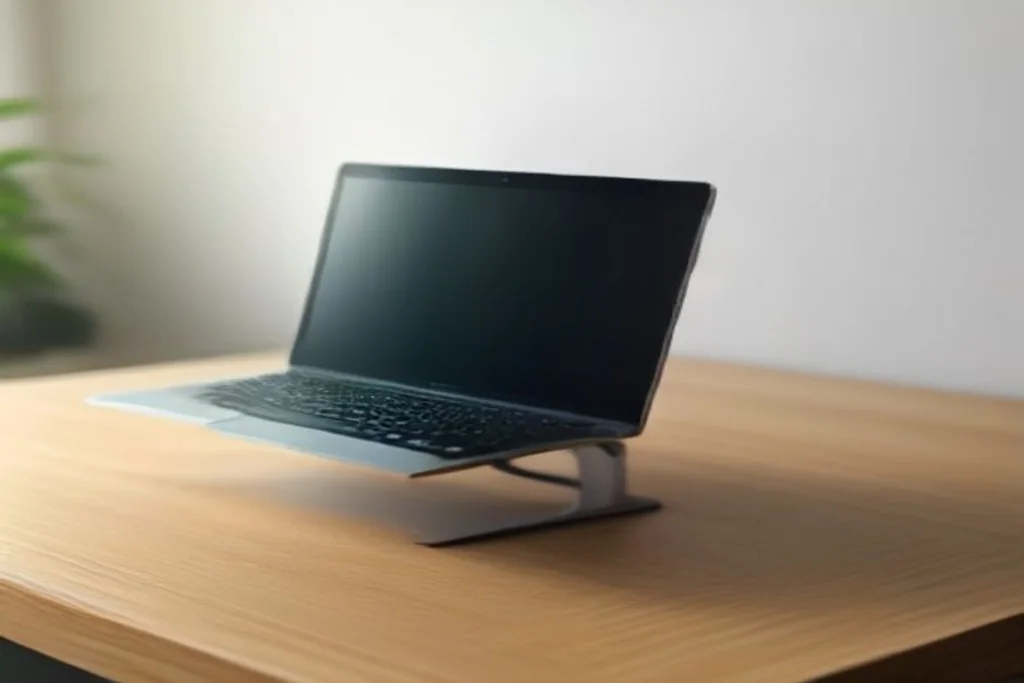
Before spending anything, remove the things that trap heat. Never run a laptop on a bed, cushion or lap for sustained work; the soft surface blocks the intake vents underneath and can add a large margin to both temperatures. A hard, flat desk is the baseline, and raising the rear a centimetre or two on a book or a simple stand improves intake airflow at no cost.
Clean the vents with compressed air every few months, because dust in the fin stack is the most common cause of a machine that used to run cool and no longer does. Reduce background load too: a browser with dozens of tabs and a stuck process pin the CPU and generate heat that no cooler can remove, so check the task manager for runaways before blaming hardware.
Cooling pads: what they do and do not do
A cooling pad is a platform with one or more fans that blows air across the underside and lifts the machine for better intake. On laptops with bottom intakes it delivers a modest but real drop in both CPU and case temperature, most noticeable when the machine sits on a soft surface without it. On laptops that intake through the keyboard deck or exhaust only at the rear hinge, the benefit is smaller.
The pad is a comfort and margin device, not a cure for a failing internal fan or a dried thermal interface. It is cheap, reversible and safe, which makes it the sensible first purchase, but expect a handful of degrees rather than a transformation.
Repasting: the fix that works and the risk it carries
The thermal paste between the chip and the heat sink dries and pumps out over years, raising the gap the heat must cross. Replacing factory paste with a quality compound is frequently the single largest temperature drop available on an older machine, often enough to lift sustained clocks back toward their boost level. It is also invasive: it means opening the chassis, which may void a warranty and risks damage if you are not careful.
For an in-warranty machine, avoid repasting and use a manufacturer service. For an out-of-warranty laptop that throttles despite clean vents, a careful repaste is the highest-value repair, done with the right tools, anti-static care and the correct amount of paste. Liquid metal offers more again but conducts electricity and can destroy a board if applied wrong, so it belongs only in experienced hands.
Software: undervolting and power profiles
Undervolting reduces the voltage the chip runs at for a given clock, cutting heat without cutting performance when done well. On CPUs that allow it, a stable undervolt is one of the most effective fixes per euro spent, because less voltage means less heat means higher sustained clocks. Many recent chips have locked this option out, so availability depends on the exact processor and firmware.
- Power profile: a balanced or quieter mode caps peak boost and heat for lighter work.
- Undervolt: where unlocked, lowers voltage and temperature at equal performance.
- Fan curve: manufacturer tools often allow an earlier, more aggressive fan ramp.
- Cap the frame rate: in games, limiting FPS removes pointless GPU heat.
What to try, in order
Work down the cost and risk ladder and stop when temperatures are acceptable. The order below is the sequence that resolves most hot laptops without ever opening them, and only escalates to invasive work when the cheap fixes plateau.
| Method | Typical drop | Cost and risk |
|---|---|---|
| Hard flat surface, raise rear | Small, case temp mostly | Free, no risk |
| Clean vents, kill background load | Moderate if dust was the cause | Free, no risk |
| Cooling pad | Modest, intake-dependent | Low cost, no risk |
| Power profile / fan curve | Varies, caps peak heat | Free, reversible |
| Undervolt (if unlocked) | Meaningful at equal speed | Free, needs testing for stability |
| Repaste thermal interface | Largest, on older machines | Invasive, may void warranty |
Fitting into the wider PC habit
Cooling is maintenance, and it belongs beside the other care a machine needs, from the SSD clone that speeds up storage to the AI laptop guide, where efficiency is the reason the new chips run cooler at the same tasks. The Personal Computer section keeps the whole maintenance stack in one place.
Bottom line
Cool a laptop in order: flat surface and clean vents first, a cooling pad and power profile next, undervolting where the chip allows, and repasting only on an out-of-warranty machine that still throttles. Measure the temperature at each step so you buy the fix that worked rather than the one that was advertised, and stop as soon as the sustained clocks hold.